
General Information on e-Commerce Tracking
Important! E-commerce tracking is only available through the business subscription.
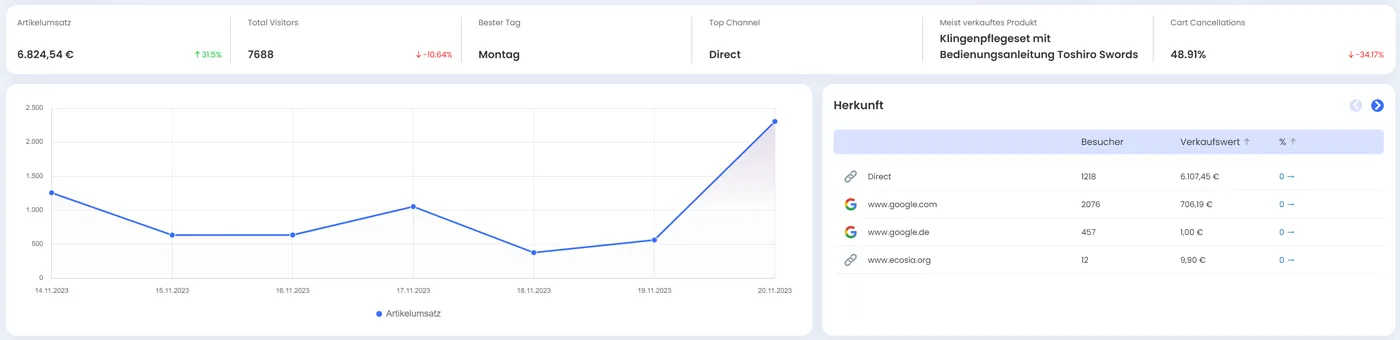
E-commerce tracking provides comprehensive tracking of your online shop, similar to what you are familiar with from e-commerce tracking in Google Analytics.
The following data is additionally determined:
- Revenue per item
- Top channel (based on sales)
- Shopping Cart Abandonment
- Most sold product
- Best day (based on the selected time frame)
- Most viewed products
- Listing of all orders including the corresponding landing page (the landing page is the first page the visitor accessed when visiting the site)
- Display of sales volume by channel (e.g., Facebook, referring websites, etc.), countries and regions, UTM sources, browsers, and devices.
All data can be filtered and sorted. This allows you to analyze the performance of your online shop in great detail.
For each area, in addition to the standard view, there is also the option to switch to the detailed view.
This provides an additional way to view data.
Use / Activation of E-Commerce Tracking
E-commerce tracking is automatically available starting from the Business plan.
Integration of the Code for E-Commerce Tracking
For the e-commerce tracking to work, additional scripts need to be integrated into your website.
Basically, there are two ways to integrate these scripts into your site:
- Manual Integration
- Integration via a corresponding plugin
Manual Integration
Manual integration requires programming knowledge and should only be performed by experienced developers.
This guide describes how to manually integrate Trackboxx e-commerce tracking into a shop - regardless of whether you are using a custom system, Shopify, Shopware, Magento or another shop. An official plugin is available for WooCommerce that automatically triggers all the events described here.
Basic logic: What does trackboxx('Purchase', [...])?
Before we get to the individual events, an important point to understand - experience has shown that this point is most frequently misinterpreted:
Important: trackboxx('Purchase', [...]) is no single event, but the generic call for all e-commerce interactions. Which event is actually tracked is determined by the first object in the array about his type:
{ type: 'ViewProduct' }- Product detail page{ type: 'AddToCart' }- Product added to the shopping basket{ type: 'ViewCart' }- View shopping basket page{ type: 'order' }- Order completed
The 'Purchase' in the function call simply refers to the „e-commerce“ action category and always remains the same - regardless of whether you are tracking a product view, an add-to-cart or an actual purchase.
The four e-commerce events at a glance
1. viewProduct - product detail page
Trigger: When calling up a product detail page.
Minimum data: Product name and unit price.
<script>
trackboxx('Purchase', [
  { type: ViewProduct },
  { type: 'product', name: '%%PRODUCT_NAME%%'price: 99.90 }
]);
</script>Code language: HTML, XML (xml)
Notes:
price= Unit price of the product (numeric, dot as decimal separator).- Optional additional fields:
sku,category. - For variants or bundles: transfer the complete variant name including attributes (e.g. „T-shirt - red, L“) so that reports are aggregated consistently.
2nd AddToCart - Product added to the shopping basket
Trigger: After a successful „Add to basket“ process - not blind on click.
Minimum data: Product name and unit price.
<script>
trackboxx('Purchase', [
  { type: AddToCart' },
  { type: 'product', name: '%%PRODUCT_NAME%%'price: 19.99 }
]);
</script>Code language: HTML, XML (xml)
Notes on timing - depending on the shop type:
- Custom shops and AJAX shopping baskets: Fire event in the success callback of the add-to-cart action, not in the click handler. This means that no tracking event is generated if the item does not end up in the shopping basket at all due to stock checks, validation or network errors.
- Server-side shops with redirect: Trigger event once on the following page after a successful add.
- Simple button-click integrations: permitted, but only if it is ensured that the click actually leads to a successful add (e.g. button-disabled check for sold-out products).
- Deduplication: Send AddToCart only once per action - no duplication for reload or back navigation.
3. viewCart - shopping basket page
Trigger: When calling up the shopping basket page.
Minimum data: Cart total (amount). Optional: all included products as separate objects.
<script>
trackboxx('Purchase', [
  { type: ViewCart' },
  { type: 'cart', amount: 149.70 },
  { type: 'product', name: Product A'price: 99.90 },
  { type: 'product', name: Product B'price: 49.80 }
]);
</script>Code language: HTML, XML (xml)
Notes:
amount= total amount of the shopping basket. Standard: Net (corresponds to the behaviour of the official WooCommerce plugin).- If your shop works with gross prices, gross values are also permitted - the decisive factor is Consistency within an event:
cart.amountand allproduct.price-values must be calculated on the same basis (all net or all gross). - A separate shopping basket item for each
product-object. - The
priceper product corresponds to the Item total (unit price × quantity) - see section „Price logic & quantity“.
4. purchase - order completion (thank you page)
Trigger: On the order confirmation page after successful payment - exactly once per order.
Minimum data: Order ID, total amount, all products purchased.
<script>
trackboxx('Purchase', [
  { type: 'order', id: 'ORDER_ID', total: 149.70 },
  { type: 'product', name: Product A'price: 99.90 },
  { type: 'product', name: Product B'price: 49.80 }
]);
</script>Code language: HTML, XML (xml)
Optional - with voucher: One additional voucher per voucher used coupon-object.
<script>
trackboxx('Purchase', [
  { type: 'order', id: '12345', total: 149.70 },
  { type: 'coupon', name: 'SUMMER10', discount: 10.00 },
  { type: 'product', name: Product A'price: 99.90 },
  { type: 'product', name: Product B'price: 49.80 }
]);
</script>Code language: HTML, XML (xml)
Notes:
- At the purchase event there are none preceding event marker as with ViewProduct or AddToCart - the
order-object identifies the event itself. order.id= unique order ID from the shop system.order.total= total value of the order (gross final amount including shipping and taxes is recommended, but must be consistent with the product.price values).product.price= Item total (unit price × quantity), not unit price.- Protect against multiple firing (reload protection), e.g. via server-side flag or session marker.
Price logic & quantity
Trackboxx used no separate quantity-field. Quantities are mapped implicitly via the price. This rule is binding and should be implemented in the same way in every integration:
| Event | Meaning of price |
|---|---|
ViewProduct | Unit price of the product |
AddToCart | Unit price of the product |
ViewCart | Item total (unit price × quantity) |
Purchase (order) | Item total (unit price × quantity) |
Example: You would like to know how often the link to your contact form is clicked on your website. Three identical items of €19.99 each in the shopping basket are sold at ViewCart and Purchase as one product-object with price: 59.97 sent - not as three separate objects and without quantity-field.
Sequence of objects in the array
For a clean, consistent integration, we recommend the following sequence of objects:
- Event marker or.
order-object (ViewProduct/AddToCart/ViewCart/order) cart-object (only for ViewCart)coupon-Objects (only for Purchase, if available)product-objects
Best Practices
- Deduplication: Send each event only once per actual action - no double tracking for reload, back navigation or AJAX returns.
- Timing:
ViewProductandViewCartfire on page load.AddToCartafter confirmed addition.Purchaseonce on the thank you page. - Prices & amounts: As
Number(not a string), with a dot as decimal separator (e.g.19.99- not"19,99"). - Consistency: Net or gross is a decision per shop - but then consistently for
cart.amount,product.priceandorder.total. - Data protection: Never hand over personal data - no e-mail addresses, names, customer numbers or addresses. Respect consent.
Quick checklist per shop system
- WooCommerce: Use the official Trackboxx plugin. It triggers all four events (
ViewProduct,AddToCart,ViewCart,Purchase) automatically - no manual integration necessary. - Custom Shops: On the server side, insert the product name, price and total as variables in the respective inline script.
- Shopify: Insert snippets into the templates (
product.liquid,cart.liquid, Checkout-Thank-You-Page). ForAddToCartdock onto the AJAX success callback. - Shopware / Magento: Attach to the corresponding events or hooks in the theme or plugin - product page, shopping basket page, add-to-cart event, order complete event.
Reference: Minimal variants
ViewProduct (minimal)
trackboxx('Purchase', [
  { type: ViewProduct },
  { type: 'product', name: Product Name 1, price: 19.99 }
]);Code language: JavaScript (javascript)
AddToCart (minimal)
trackboxx('Purchase', [
  { type: AddToCart' },
  { type: 'product', name: Product Name 1, price: 19.99 }
]);Code language: JavaScript (javascript)
ViewCart (minimal)
trackboxx('Purchase', [
  { type: ViewCart' },
  { type: 'cart', amount: 19.99 }
]);Code language: JavaScript (javascript)
Purchase (minimum)
trackboxx('Purchase', [
  { type: 'order', id: 'ORDER_ID', total: 19.99 },
  { type: 'product', name: Product Name 1, price: 19.99 }
]);Code language: JavaScript (javascript)
Brief overview: The most important rules
trackboxx('Purchase', [...])is a generic e-commerce call, not an event.- The event type is in the payload (
type-field of the first object), not in the function call. AddToCartfire after a successful add - not blindly on click.cart.amountas a net value by default; gross allowed, but consistent within the event.price= Unit price atViewProduct/AddToCart, item total forViewCart/Purchase.- No separate
quantity-field - quantities via the price. - Purchase event based on
{ type: 'order' }without a preceding event marker. - Prices as number with dot decimal separator, never as string.
- No personal data in the payload.
Integration via Plugin
Currently, integration via plugin is possible with the following systems:
- WordPress – Click here to download the Plugin
- JTL – Click here to download the plugin
We will gradually implement additional plugins.
Currently in progress:
- ePages (now available)
- Shopware
Display of the most viewed products
To display this ad, please follow these steps:
- click on the cogwheel for the settings and select "Websites"
- For the respective website, click on the three dots next to the website.
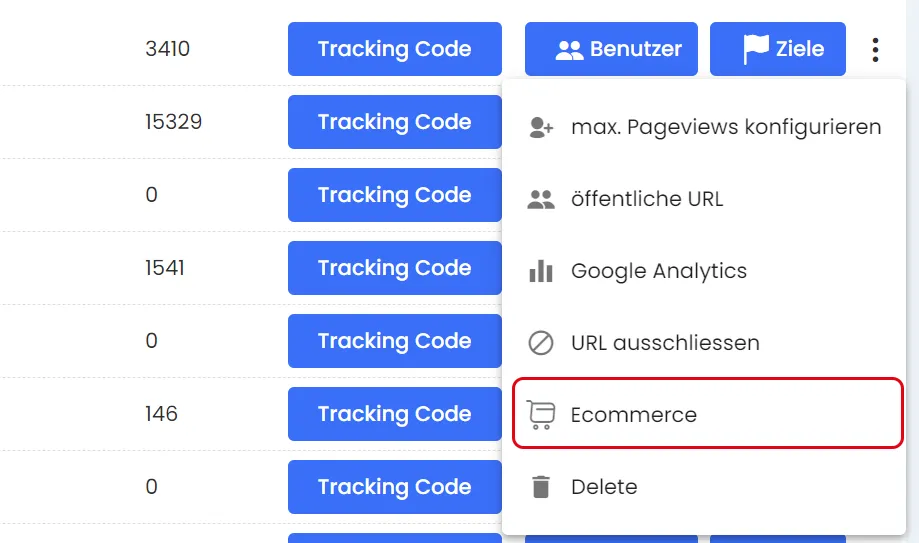
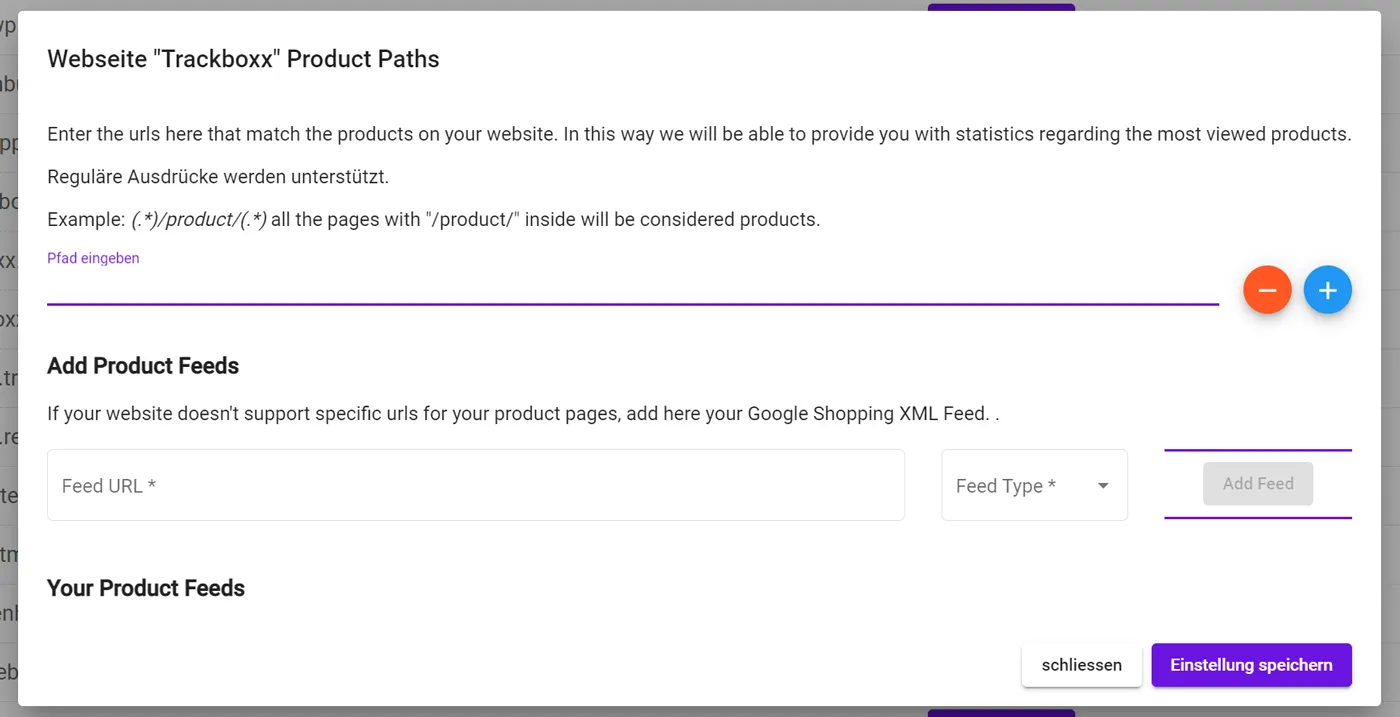
In the following pop-up, we now have 2 options to use/configure this output:
- Your products have a unique path - for example: www.webseite.de/produkte/produkt-XYZ
In this case "Products" - then you can use the first option and enter this path in the appropriate place:
The format would be: (.*)/products/(.*)
2. If there is no unique path, we would need to use the Google Product Feed. Typically, this is used in an online shop.
Simply enter this feed and save it.

 Deutsch
  English (UK)
  Français
  Italiano
  Español
  Nederlands
  Polski
  Svenska